

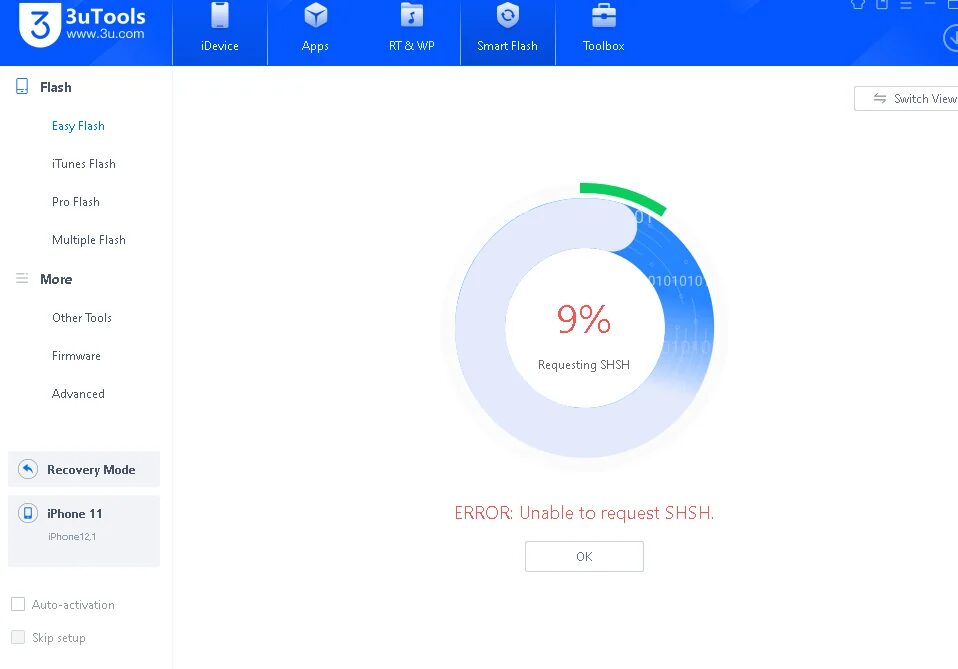
Are you trying to flash or downgrade iOS and suddenly seeing the unable to request SHSH error on your screen? This problem usually appears when 3uTools or iTunes can’t verify your device with Apple’s server, so the restore or downgrade process stops. It can feel confusing and stressful, especially if you don’t know what SHSH host means or why this error happens.
Don’t worry, as this article is written to help you. We’ll explain the issue in simple words and show you clear, step-by-step ways to fix cannot get SHSH from the server so you can get your iPhone working again without hassle.
So, let’s get started.
Part 1: What does SHSH mean in 3uTools?
SHSH is a special verification file created by Apple. It works like a digital permission slip that tells Apple’s server whether your iPhone is allowed to install or restore a specific iOS version. Without SHSH approval, tools like 3uTools or iTunes cannot complete the flashing or downgrading process.
What can we do with SHSH?
SHSH is mainly used to restore, upgrade, or downgrade iOS. When an iOS version is still signed by Apple, SHSH helps confirm that the firmware is valid for your device. This is why SHSH host plays a key role when flashing firmware in 3uTools.
How to download SHSH?
To download SHSH 3uTools, connect your iPhone to the computer and open 3uTools. Go to Flash & JB, then choose Pro Flash. Select the available firmware and click Download SHSH. If Apple is still signing that iOS version, 3uTools will download the SHSH automatically.
Part 2: Why does the error “Unable to request SHSH” occur?
If you are trying to downgrade Apple iPhone software and see the “Unable to request SHSH” error in 3uTools, it means the tool failed to get permission from Apple’s server to verify the iOS firmware. This usually happens for one or more of the reasons below.
1. Apple stopped signing the iOS version
Apple only allows certain iOS versions to be installed. If the iOS version you are trying to flash is no longer signed, Apple will block the SHSH request. As a result, SHSH 3uTools cannot continue, and the error appears.
2. Network or server issues
A weak or unstable internet connection can interrupt communication with Apple’s servers. Firewalls, VPNs, or proxy settings may also block the request. In some cases, Apple’s servers may be temporarily busy or unavailable.
3. Outdated 3uTools version
Using an old version of 3uTools can cause compatibility problems. If the app cannot connect properly to Apple’s servers, it may fail to request SHSH. Updating the tool often fixes this issue.
4. Wrong firmware selected
If the firmware does not match your iPhone model or is not supported, the SHSH request will fail. Always make sure the selected iOS version is correct and still supported for your device.
Understanding these causes will make it easier to fix the problem in the next steps.
Part 3: How to Fix Unable to Request SHSH Error in 3utools?
If you’re stuck with the Unable to Request SHSH error while trying to flash or downgrade Apple iPhone software in 3uTools, don’t worry, there are several simple fixes you can try. Below are clear steps to help you resolve this issue and continue with your restore or downgrade process.
1. Try iTunes to Restore
Sometimes 3uTools can’t communicate properly with Apple’s servers, but iTunes (or Finder on Mac) can still restore your device. This method often bypasses SHSH request errors and fixes deeper firmware problems that stop 3uTools from working.
Steps to restore using iTunes:
- Connect your iPhone to your computer with a USB cable.
- Open iTunes (or Finder on macOS Catalina and later).
- Wait for your device to appear in the app.
- Click Restore iPhone and confirm.
- Follow the on-screen instructions.
- Once the restore finishes, open 3uTools again and try requesting SHSH.
2. Make Sure Your Internet Works
A reliable internet connection is essential when 3uTools contacts Apple’s signing server to request SHSH blobs. If the connection is weak or blocked, the request to install unsigned IPSW with SHSH blobs will fail.
How to ensure your network is working:
- Restart your Wi-Fi router or switch to another network.
- Turn off VPNs, firewalls, or proxy settings that might block connections.
- Try a wired connection instead of Wi-Fi.
- Test your internet speed to make sure it’s stable.
3. Update Your 3uTools App
Older 3uTools versions can have bugs or compatibility issues that prevent them from requesting SHSH correctly. Updating to the newest release helps fix these problems because the developers regularly improve server communication and support for newer iOS versions.
How to update 3uTools:
- Open 3uTools on your computer.
- Click the Menu (three lines) in the top-left corner.
- Choose Check for Updates.
- If a new version is available, download and install it.
- Restart 3uTools and try again.
4. Check if iOS Is Still Signed
Apple only allows tools like 3uTools to request SHSH blobs for iOS versions that are currently being signed. If the version you’re trying to flash or downgrade to is no longer signed, your install unsigned IPSW with SHSH blobs request will always fail, it’s not a fault of the tool.
How to check iOS signing status:
- Visit a signing status site (such as ipsw.me).
- Pick your iPhone model.
- Look for the iOS version you want to use.
- A green check means Apple is still signing it.
- A red cross means the version is not being signed anymore.
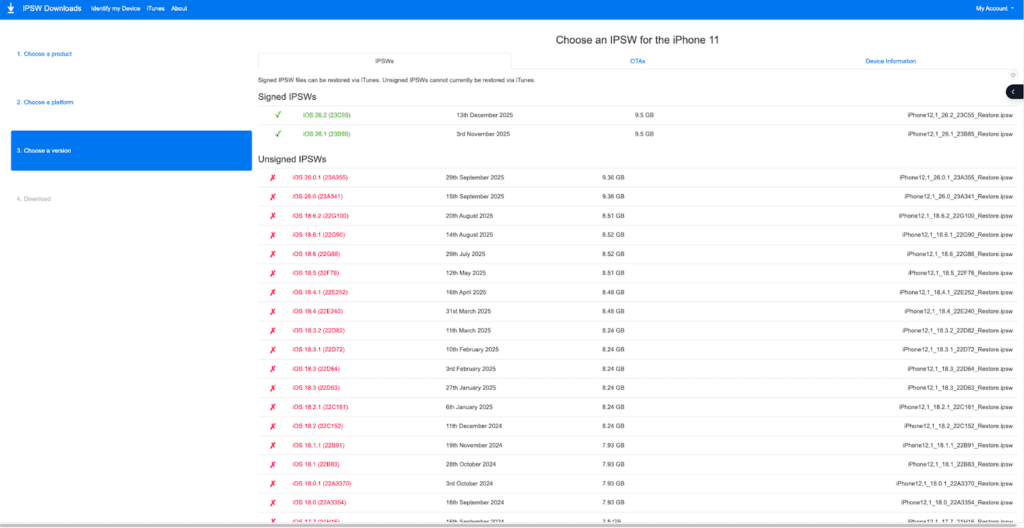
If the version you want isn’t signed, 3uTools can’t request SHSH for it. You’ll need to pick a currently signed iOS version or try a different tool.
Part 4: Best Way to Downgrade iOS26/18 Without Error Unable to Request SHSH
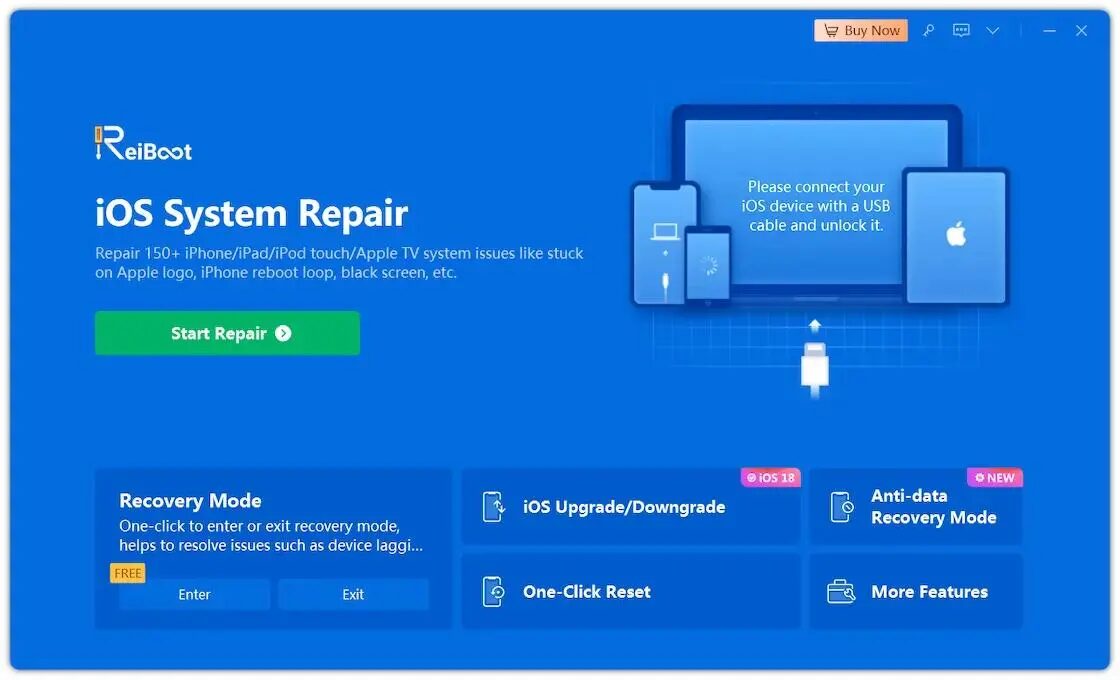
If you’re tired of seeing the Unable to Request SHSH error again and again, there’s a much easier and safer solution. Tenorshare ReiBoot is one of the best tools for downgrading iOS without dealing with SHSH files or complex flashing steps. It is designed for regular users who just want a smooth downgrade experience.
Why choose Tenorshare ReiBoot?
Here’s why ReiBoot is a smart choice when 3uTools fails:
- No SHSH headaches: ReiBoot handles firmware verification automatically, so you don’t need to request or manage SHSH files yourself.
- Very easy to use: The tool has a clean interface and clear buttons, making it perfect even if you’re not tech-savvy.
- High success rate: ReiBoot is known for stable downgrades and fewer errors compared to manual flashing tools.
- Extra system repair features: Besides downgrading, it can also fix common iOS issues like stuck updates, boot loops, and frozen screens.
How to downgrade iOS using ReiBoot (Step by Step)
Follow these steps carefully:
Step 1: Set up ReiBoot and connect your iPhone
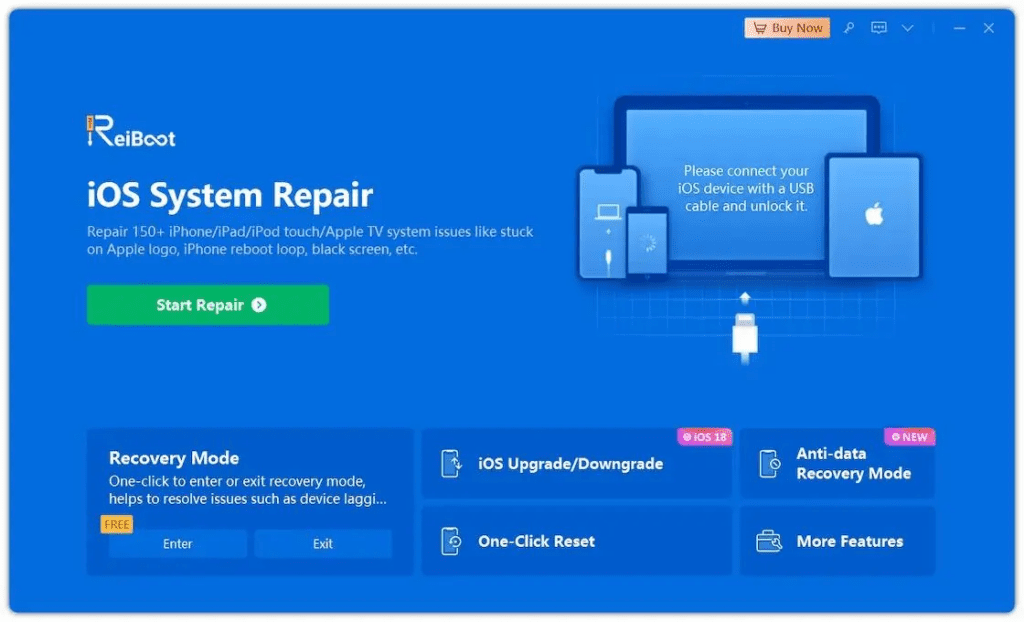
First, download and install Tenorshare ReiBoot on your Windows PC or Mac. Open the program and connect your iPhone using a USB cable. Once your device is detected, select iOS Upgrade/Downgrade from the main interface.
Step 2: Choose the downgrade option
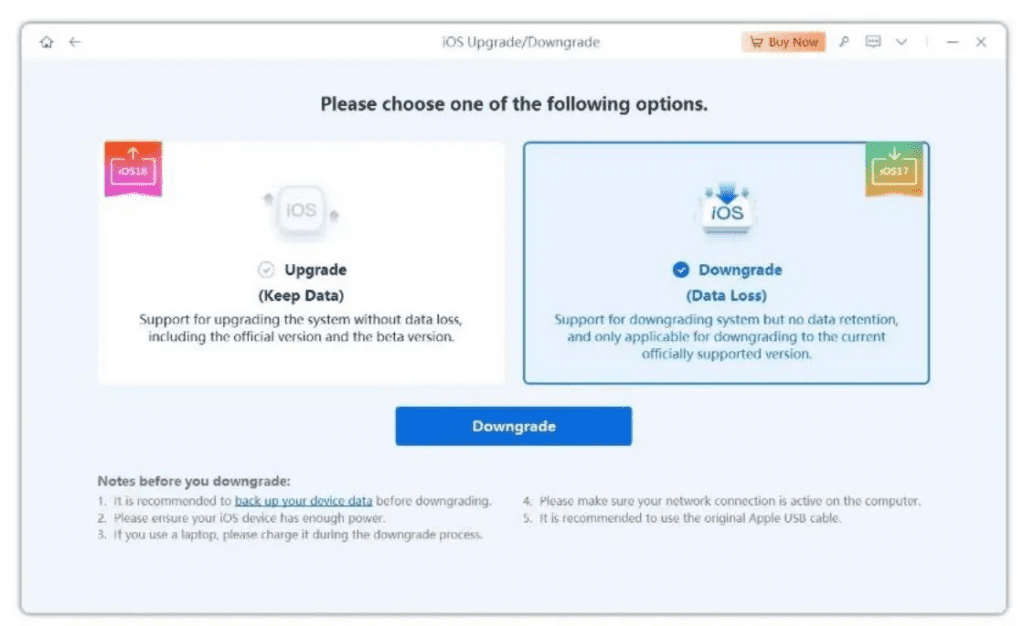
On the next screen, you’ll see two choices. Click Downgrade and confirm to move forward. This lets ReiBoot know you want to install an earlier iOS version.
Step 3: Get the correct iOS firmware
ReiBoot will automatically match your iPhone with the proper iOS firmware. When the firmware list appears, click Download to fetch the required file.
Step 4: Begin the downgrade
After the firmware finishes downloading, click Initiate Downgrade. ReiBoot will start installing the selected iOS version while keeping the process stable and secure.
Step 5: Complete the process
When the downgrade is done, click Done. Your iPhone will restart on its own, now running the downgraded iOS version.
This method helps you downgrade iOS 18 or iOS 26 smoothly while avoiding the unable to request SHSH, cannot get SHSH from the server error, making ReiBoot a reliable and stress-free solution.
Part 5: FAQs about Error Unable to Request SHSH
Q1: What should I do if iOS 18.2.1 update stops at 9% with an SHSH error?
If your update freezes at 9% due to an SHSH error, first check your internet connection and make sure it’s stable. Restart your iPhone and try updating again. If the error persists, use a tool like Tenorshare ReiBoot to complete the update or downgrade safely without needing SHSH verification.
Q2: I have the latest version of 3uTools, but I’m still getting the “SHSH” error. How can I upgrade an iPhone 8 Plus running iOS 12 to iOS 16?
Even with the latest 3uTools, some iOS versions might not be signed by Apple anymore, causing SHSH errors. In this case, the safest option is to use ReiBoot to upgrade your iPhone directly to iOS 16. It handles the firmware verification automatically and avoids the SHSH problem.
Q3: Can I go from iOS 26 to iOS 18 on iPhone 13 Pro?
No — you can’t downgrade from iOS 26 to iOS 18 on an iPhone 13 Pro. Apple only allows downgrades to iOS versions that are currently being signed, and iOS 26 isn’t even officially released.
Conclusion
The Unable to Request SHSH error can be annoying when you want to restore, update, or downgrade your iPhone. It usually happens because the iOS version is no longer signed by Apple, your internet connection is unstable, or your tools are outdated. You can fix it by checking your connection, updating 3uTools, using iTunes, or making sure the iOS version is still signed.
The easiest and safest way is to use Tenorshare ReiBoot. It helps you downgrade or restore iOS without worrying about SHSH errors and also fixes common iPhone problems quickly and safely.